jetson
Jetson Nano Developer Kit A02 4GB



I got the Developer Kit A02 (only one CSI camera interface, the B01 has two) of the Jetson Nano in early 2020. In 2021 I added the case, proper power supply and Wifi Card. Early 2024 I started to use it again, but run into limitations very early. Here is part of the documentation.
Structure
- Ubuntu Distribution limited to 18.04
- First start - 8 minutes
- Hardware limitations
- Running Ollama on the Jetson - CPU only?
- llama.cpp as an alternative?
- OpenCL with POCL - Portable CL on the Jetson?
- Some tips
Ubuntu Distribution limited to 18.04
While some updated images with 20.04 exist, officially Nvidia only supports 18.04 LTS from the official website. This version is 7 years old in 2025 and ended support in May 2023. This adds severe software limitations to the already existing hardware limitations:
- Kernel GNU/Linux 4.9.201-tegra
- GNU Compiler Collection 7.5.0 (G++ 7.5.0) from 2019
- NVIDIA Cuda Compiler nvcc 10.3.200
- Jetpack 4.6.1-b110
sudo apt-cache show nvidia-jetpack - Python 3.6.9
- No OpenCL (try fix with PoCL)
First start
The first system start (after having written the latest image from Nvidia to the SD card - 43 to 52 minutes) with some setup, useful software features and ssh login needs less than 8 minutes:
- 2 minutes - First boot, a few clicks, setting timezone, username and other settings
- 2 minutes - A new login screen, enter your password and click a few welcome messages
- The system is now running after 48 minutes, and the OpenSSH server has already started, you can ssh into your machine
- 4 minutes - A few changes,
apt update(not upgrade), few packages and a reboot
A few things you might want to do. Disable the graphical login. Update your apt repository (348 packages, 38 seconds). Install jtop. This will take another 3 minutes, followed by a reboot.
sudo systemctl set-default multi-user.target
sudo apt update
sudo apt install nano curl libcurl4-openssl-dev python3-pip
sudo -H pip3 install -U jetson-stats
sudo reboot
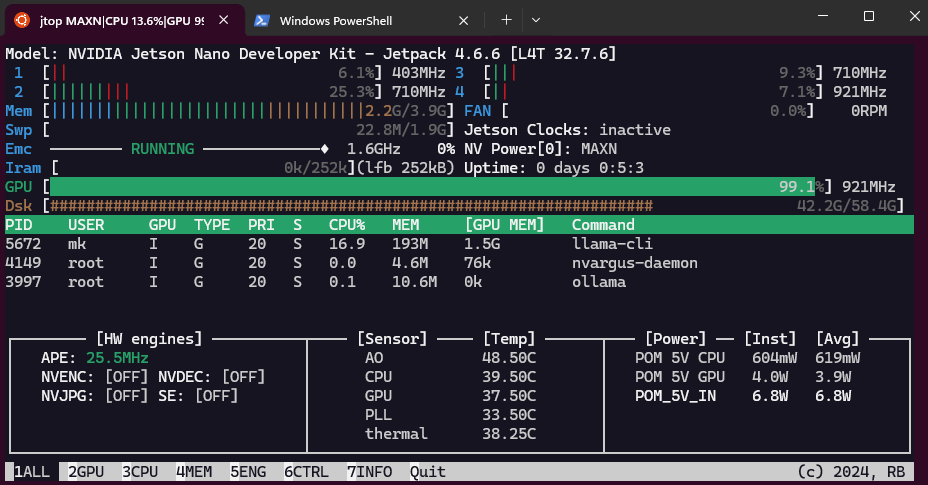
After this the system uses df some 12,615,632 Bytes of the SD card. jtop reports Jetpack 4.6.1 [L4T 32.7.1]. A run of sudo apt autoremove will take 45 seconds and save 114 MBytes. The compiler /usr/local/cuda/bin/nvcc --version returns:
nvcc: NVIDIA (R) Cuda compiler driver
Copyright (c) 2005-2021 NVIDIA Corporation
Built on Sun_Feb_28_22:34:44_PST_2021
Cuda compilation tools, release 10.2, V10.2.300
Build cuda_10.2_r440.TC440_70.29663091_0
The kernel is uname -a: Linux nano 4.9.253-tegra #1 SMP PREEMPT Sat Feb 19 08:59:22 PST 2022. Without the GUI its 383M/3.87G Mem used. Compiler gcc --version is:
gcc (Ubuntu/Linaro 7.5.0-3ubuntu1~18.04) 7.5.0
Copyright (C) 2017 Free Software Foundation, Inc.
This is free software; see the source for copying conditions.  There is NO
warranty; not even for MERCHANTABILITY or FITNESS FOR A PARTICULAR PURPOSE.
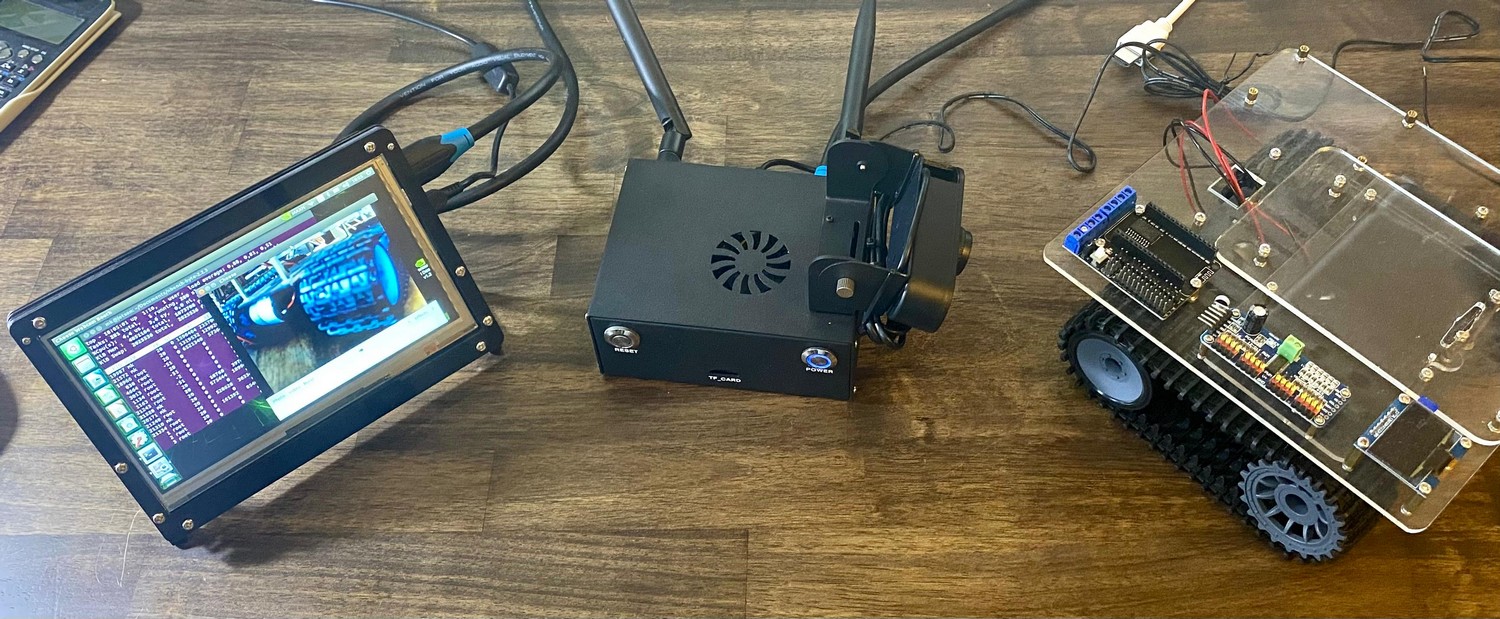
Hardware limitations
The hardware was released 2019, based on the Maxwell architecture of Nvidia from 2014. That’s 11 years by 2025.
- Quadcore Cortex-A57 at 1428 MHz in Tegra X1 like Nintendo Switch and Nvidia Shield Pro
- 4GB LPDDR4 with 25.60 GB/s bandwidth
- 128 core Maxwell (CUDA Compute Capabilty 5.3) GPU with 472 GFLOPS at 921 MHz
Memory bandwidth
I checked the actual memory bandwidth with sysbench:
mk@jetson:~$ sysbench memory --memory-block-size=1m run
sysbench 1.0.11 (using system LuaJIT 2.1.0-beta3)
68903.00 MiB transferred (6887.13 MiB/sec)
It looks like only 6.8 GB/s are usable with LPDDR4, not 25.60. This will limit the speed in token generation (TG) later.
Running Ollama on the Jetson - CPU only?

See Nvidia Jetson AI Lab, it generally starts with the Jetson Orin Nano. The orignal Jetson is only there for comparison. For example the Ollama tutorial not even mention the 4GB Orin model, and lists JetPack 5 (L4T r35.x) and JetPack 6 (L4T r36.x) as requirements. The latest JetPack for the original Jetson Nano is JetPack 4.6.6 - see the archive.
You can install ollama on this machine. The simple instruction is curl -fsSL https://ollama.com/install.sh | sh. And it does run llama3.2:1b with 3.77 token/s at 100% CPU. Gemma3 is faster with more than 5 t/s. Is it possible to get GPU acceleration? The hardware should be able to, since Cuda CC >= 5.0 is required, and the Jetson has CC 5.3.
Use of GPU not possible - 2024-07-25
As per this ollama issue 4140 on Github it should not be possible to run ollama on the Jetson Nano. The challenge is the version of gcc.
mk@jetson:~$ nvcc --version
nvcc: NVIDIA (R) Cuda compiler driver
Copyright (c) 2005-2021 NVIDIA Corporation
Built on Sun_Feb_28_22:34:44_PST_2021
Cuda compilation tools, release 10.2, V10.2.300
Build cuda_10.2_r440.TC440_70.29663091_0
- Ollma a requires gcc-11. CUDA 10.2 is not supported past gcc-8
- Nvidia provies for the Jetson Nano only JetPack 4.6, based on Ubuntu 18.04, with build-in CUDA 10.2. It includes gcc-7.5
As tested by dtischler in May 4, 2024 an upgrade to gcc-11 is relatively easy done, but CUDA and the GPU are not usable, and it falls back to CPU inference.
Technically the Maxwell GPU with Cuda CC 5.3 should be supported by Cuda 12. But it would be privided by Nvidia with their JetPack SDK. And as the list of old versions indicate, the latest supported version for the Jetson Nano is 4.6.6. Since 5.1.1 the Jetson Orin Nano is supported.
llama.cpp as an alternative?

Probably CPU only 2024-04-11
You can compile and run llama.cpp on the Jetson Nano with a decent speed with the following commands:
git clone https://github.com/ggml-org/llama.cpp
cd llama.cpp
cmake -B build -DLLAMA_CURL=ON
sudo cmake --build build --config Release
More in these repositories:
- https://github.com/kreier/llama.cpp-jetson Compile a new llama.cpp for CPU and also with CUDA for GPU acceleration
- https://github.com/kreier/llama.cpp-jetson.nano Install precompiled binaries in minutes and start testing
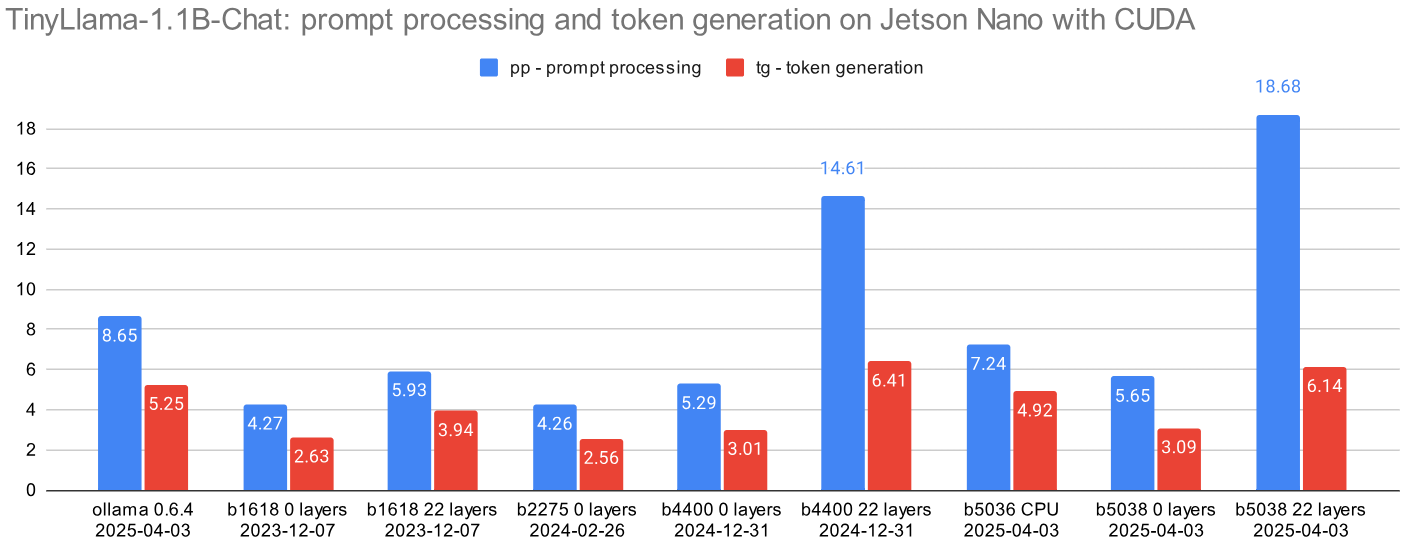
GPU accelerated b1618 2023-11-03
Look here and on medium.
GPU accelerated b2268 2024-04-11
The following procedure seems to be obsolete, now that specific entries for the Jetson Nano are included in the Makefile for llama.cpp and even ollama runs out-of-the-box. The gist does not mention the use of the GPU with CUDA for acceleration.
An gist article by Flor Sanders from April 2024 describes the process of running llama.cpp on a 2GB Jetson Nano. With 4GB it should be possible to run a complete llama3.2:1b model file. But you can’t use the provided gcc 7.5 compiler, you need at least 8.5 - so you compile it yourself over night. It needs around 3 hours to complete.
Since I have a 32GB SDcard and 11 GB free it should be possible to compile GCC 8.5 overnight. But first we have to add the link to nvcc the path. in ~/.bashrc I have to add (with nano, that has to be installed too):
$ export PATH=/usr/local/cuda/bin${PATH:+:${PATH}}
$ export LD_LIBRARY_PATH=/usr/local/cuda/lib64${LD_LIBRARY_PATH:+:${LD_LIBRARY_PATH}}
The recommended version of llama.cpp to check out is a33e6a0 from February 26, 2024. The current version of the Makefile has entries for the Jetson in line 476. It could well be that this only refers to run on the CPU (as with the mentioned Raspberry Pi’s) and not using the GPU with CUDA. This aligns with the error message by VViliams123 on October 4, 2024.
GPU accelerated b5050 2025-04-05
Install a CUDA version of llama.cpp, llama-server and llama-bench on the Jetson Nano in one minute, compiled with gcc 8.5. Just type:
curl -fsSL https://kreier.github.io/llama.cpp-jetson.nano/install.sh | sh
If the path is not automatically adjusted, run export LD_LIBRARY_PATH=/usr/local/lib:$LD_LIBRARY_PATH or add this line permanently with nano ~/.bashrc to the end.

OpenCL with PoCL - Portable CL on the Jetson?
An article on Medium from September 2021 describes the installation of PoCL 1.7 on the Jetson Nano. By 2024 version 6.0 is the latest one, but it’s not supported by PoCL. The reason is described here, and related to the old Ubuntu 18.04. That’s why the latest version that can be installed is PoCL 3.0. This has been done successfully in October 2022.
On “old” Jetson boards (TX2, Xavier NX, AGX Xavier & Nano), it is not possible to install recent PoCL version 5 because the OS is too old (Ubuntu 18.04) and it is complicated to install a recent version of the required Clang compiler (version 17). This is why on these specific boards we will install PoCL version 3. One of the main drawback is that there is no GPU 16-bit float support in this version 😔.

Before we compile and install PoCL we need LLVM 11.1.0, the target-independent optimizer and code generator initially named Low Level Virtual Machine in 2003.
Install LLVM
Install the LLVM for ARM64 and Jetson Nano on Ubuntu 18.04 (source):
export LLVM_VERSION=10
sudo apt install -y build-essential ocl-icd-libopencl1 cmake git pkg-config libclang-${LLVM_VERSION}-dev clang-${LLVM_VERSION} llvm-${LLVM_VERSION} make ninja-build ocl-icd-libopencl1 ocl-icd-dev ocl-icd-opencl-dev libhwloc-dev zlib1g zlib1g-dev clinfo dialog apt-utils libxml2-dev libclang-cpp${LLVM_VERSION}-dev libclang-cpp${LLVM_VERSION} llvm-${LLVM_VERSION}-dev libncurses5
cd /opt
sudo wget https://github.com/llvm/llvm-project/releases/download/llvmorg-11.1.0/clang+llvm-11.1.0-aarch64-linux-gnu.tar.xz
sudo tar -xvvf clang+llvm-11.1.0-aarch64-linux-gnu.tar.xz
sudo mv clang+llvm-11.1.0-aarch64-linux-gnu llvm-11.1.0
sudo rm clang+llvm-11.1.0-aarch64-linux-gnu.tar.xz
Compile and Install PoCL
cd ~/
mkdir softwares
cd softwares
git clone -b release_3_0 https://github.com/pocl/pocl.git pocl_3.0
cd pocl_3.0
mkdir build
cd build
cmake -DCMAKE_INSTALL_PREFIX=/opt/pocl-3.0 -DCMAKE_BUILD_TYPE=Release -DCMAKE_CXX_FLAGS="-funroll-loops -march=native" -DCMAKE_C_FLAGS="-funroll-loops -march=native" -DWITH_LLVM_CONFIG=/opt/llvm-11.1.0/bin/llvm-config -DSTATIC_LLVM=ON -DENABLE_CUDA=ON ..
make -j4
sudo make install
sudo mkdir -p /etc/OpenCL/vendors/
sudo touch /etc/OpenCL/vendors/pocl.icd
echo "/opt/pocl-3.0/lib/libpocl.so" | sudo tee --append /etc/OpenCL/vendors/pocl.icd
Now OpenCL should be successfully installed on the system. You can check if it works with the following command:
mk@jetson:~$ clinfo
My result:
Number of platforms                       1
  Platform Name                           Portable Computing Language
  Platform Vendor                         The pocl project
  Platform Version                        OpenCL 3.0 PoCL 3.0-rc2  Linux, RELOC, LLVM 11.1.0, SLEEF, FP16, CUDA, POCL_DEBUG
  Platform Profile                        FULL_PROFILE
  Platform Extensions                     cl_khr_icd cl_pocl_content_size
  Platform Host timer resolution          0ns
  Platform Extensions function suffix     POCL

  Platform Name                           Portable Computing Language
Number of devices                         2
  Device Name                             pthread-cortex-a57
  Device Vendor                           ARM
  Device Vendor ID                        0x13b5
  Device Version                          OpenCL 1.2 PoCL HSTR: pthread-aarch64-unknown-linux-gnu-cortex-a57
  Driver Version                          3.0-rc2
  Device OpenCL C Version                 OpenCL C 1.2 PoCL
  Device Type                             CPU

  Device Name                             NVIDIA Tegra X1
  Device Vendor                           NVIDIA Corporation
  Device Vendor ID                        0x10de
  Device Version                          OpenCL 1.2 PoCL HSTR: CUDA-sm_53
  Driver Version                          3.0-rc2
  Device OpenCL C Version                 OpenCL C 1.2 PoCL
  Device Type                             GPU
  Device Topology (NV)                    PCI-E, 00:00.0
  Device Profile                          FULL_PROFILE
  Device Available                        Yes
  Compiler Available                      Yes
  Linker Available                        Yes
  Max compute units                       1
  Max clock frequency                     921MHz
  Compute Capability (NV)                 5.3
Run clpeak Benchmark
cd ~/ && mkdir workspace && cd workspace
git clone https://github.com/krrishnarraj/clpeak.git
cd clpeak
git submodule update --init --recursive --remote
mkdir build && cd build
cmake ..
make -j4
./clpeak
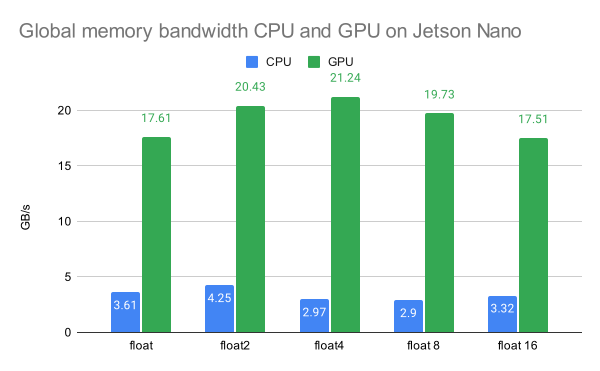
Result (also here in a Google Sheet):
Platform: Portable Computing Language
  Device: pthread-cortex-a57
    Driver version  : 3.0-rc2 (Linux ARM64)
    Compute units   : 4
    Clock frequency : 1479 MHz

    Single-precision compute (GFLOPS)
      float   : 1.04
      float2  : 2.09
      float4  : 4.14
      float8  : 8.20
      float16 : 15.94

    Integer compute (GIOPS)
      int   : 3.80
      int2  : 3.28
      int4  : 5.69
      int8  : 11.14
      int16 : 21.34

  Device: NVIDIA Tegra X1
    Driver version  : 3.0-rc2 (Linux ARM64)
    Compute units   : 1
    Clock frequency : 921 MHz

    Single-precision compute (GFLOPS)
      float   : 220.29
      float2  : 228.37
      float4  : 229.89
      float8  : 228.30
      float16 : 228.25

    Integer compute (GIOPS)
      int   : 62.01
      int2  : 77.55
      int4  : 77.35
      int8  : 57.64
      int16 : 63.62
The GPU is slightly faster, but provides only 228 GFLOPS and 0.06 TOPS with 25 GB/s theoretical memory bandwidth. In theory it should achieve 472 GFLOPS in FP16. For comparison: the Jetson Nano Orin Super has 2560 GFLOPS and 67 TOPS with 102 GB/s theoretical memory bandwidth.
Some tips
Deactivate the GUI with sudo systemctl set-default multi-user.target. To apply, do a reboot with sudo reboot. Reactivate with sudo systemctl set-default graphical.target and sudo reboot.